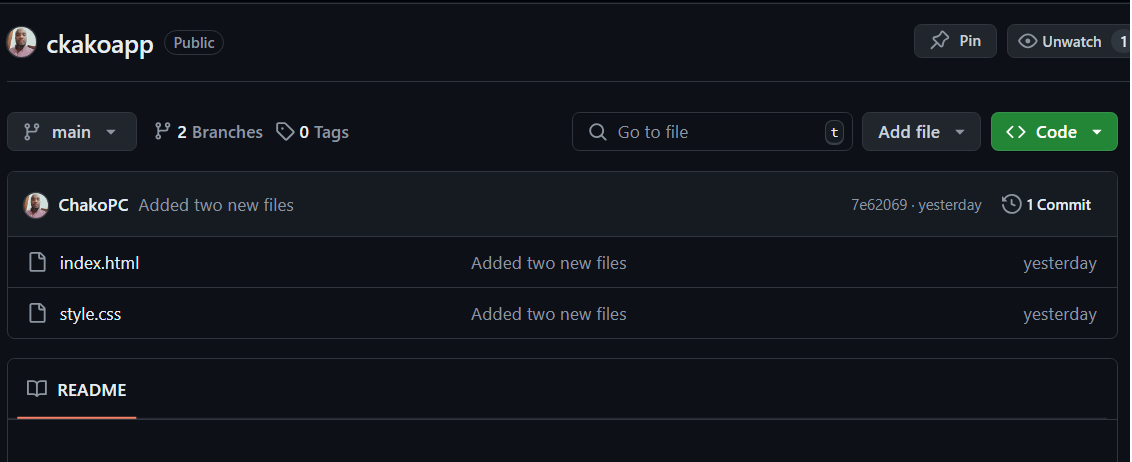
Create a file on your local machine using GitBash and push it to a GitHub repository.

I have a solid background in cloud computing ideas and a strong desire to use cloud technology to address practical issues. I am an enthusiastic and driven cloud developer. Equipped with practical AWS and Azure knowledge, I'm excited to advance in the cloud development industry and add value to dynamic teams.
I am chronicling my daily experiences in the realm of cloud computing on this blog.
Create a file on your local machine using GitBash and push it to a GitHub repository.
To create a file from your local machine via GitBash and push it to a GitHub repository, follow these steps:
Open GitBash: Launch GitBash on your local machine.
Use the
mkdircommand to make a folder.Use the
cdcommand to navigate to the myapp directory.Use the
git initcommand to initialise git on your local repository
Create a New File: Use the touch command to create a new file. For example, to create a file named index.html

Add Content to the File: Open the file with a text editor (like vi) and add some content.
vi index.html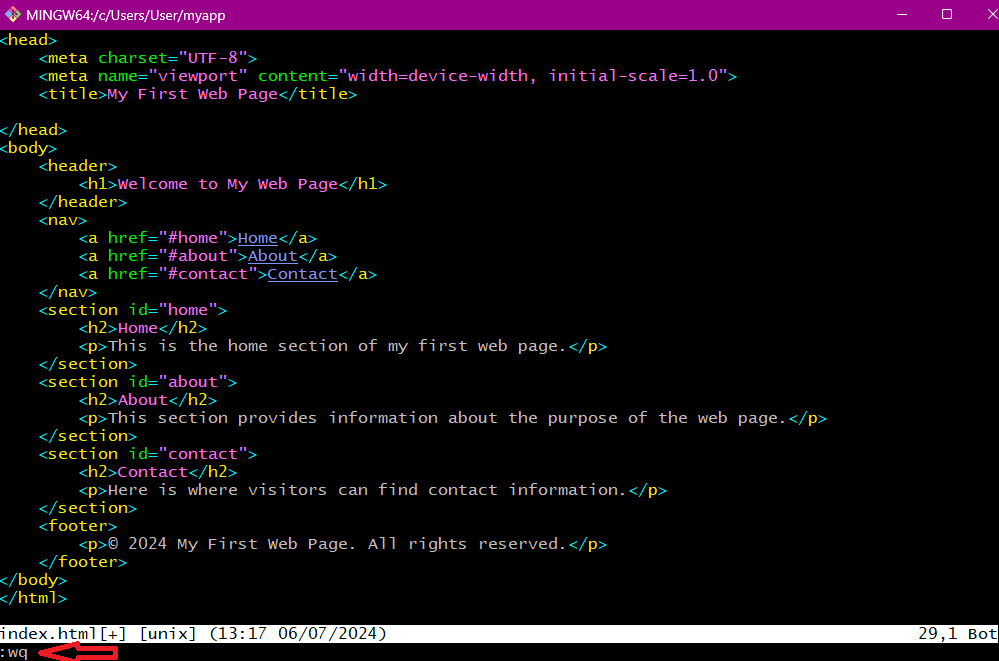
After adding content, use the command
:wq+ enter to save and exit the editor.Let's connect the local repository to the GitHub repository using the following command:
git remote add origin<url>Stage the File: Use the
git addcommand to stage the new file.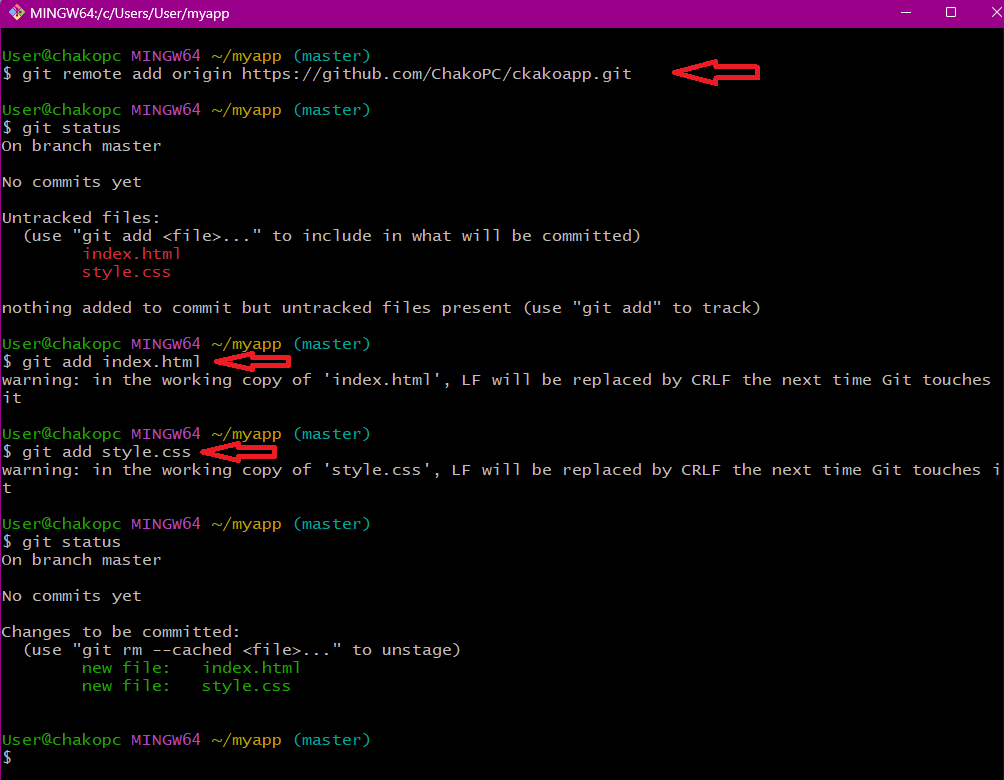
Commit the Changes: Commit the changes with a descriptive message.
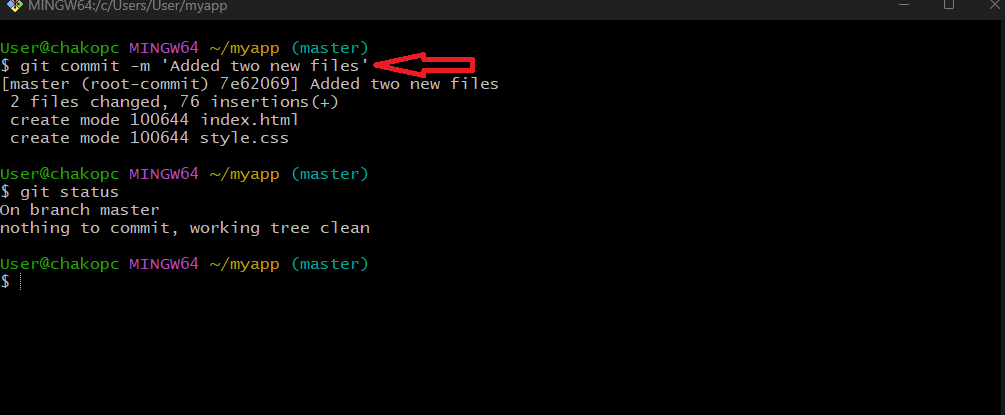
Push to GitHub: Push the changes to your GitHub repository.
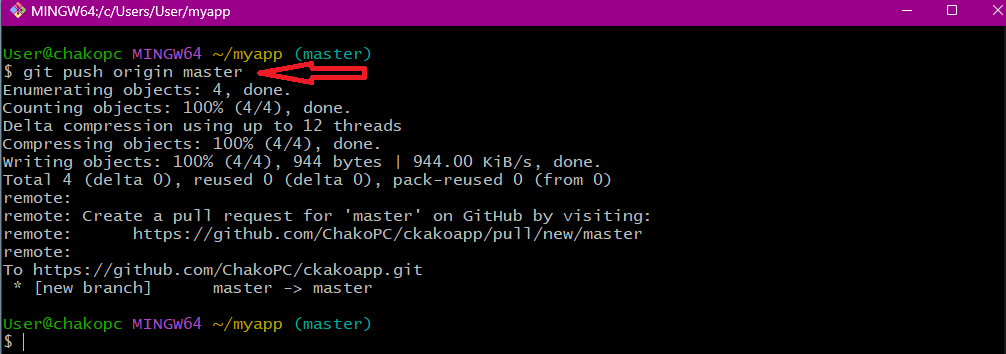
By following these steps, you will have successfully created a file on your local machine using GitBash and pushed it to your GitHub repository.
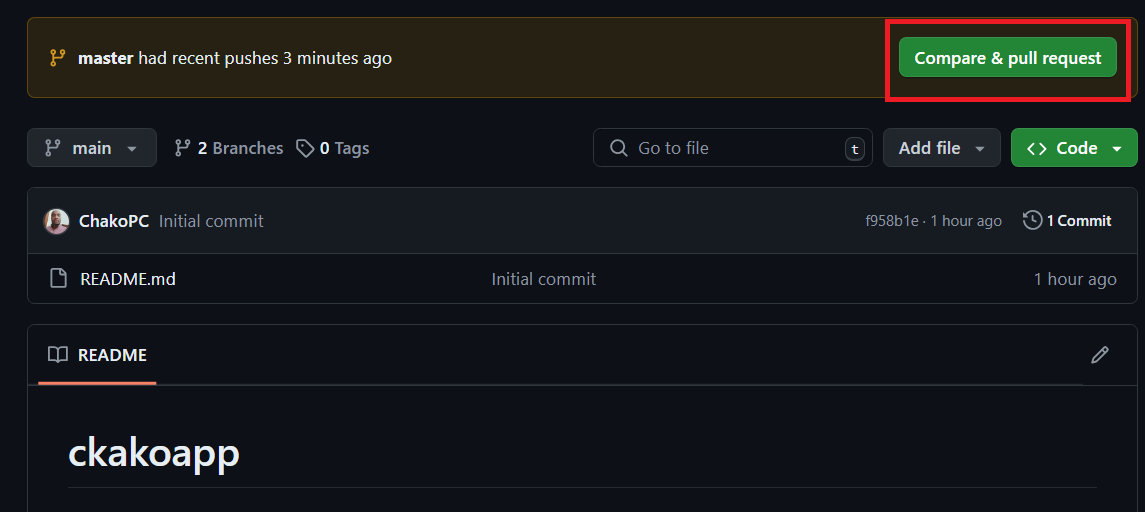
The next step is to create a pull request:
The following window pops up:
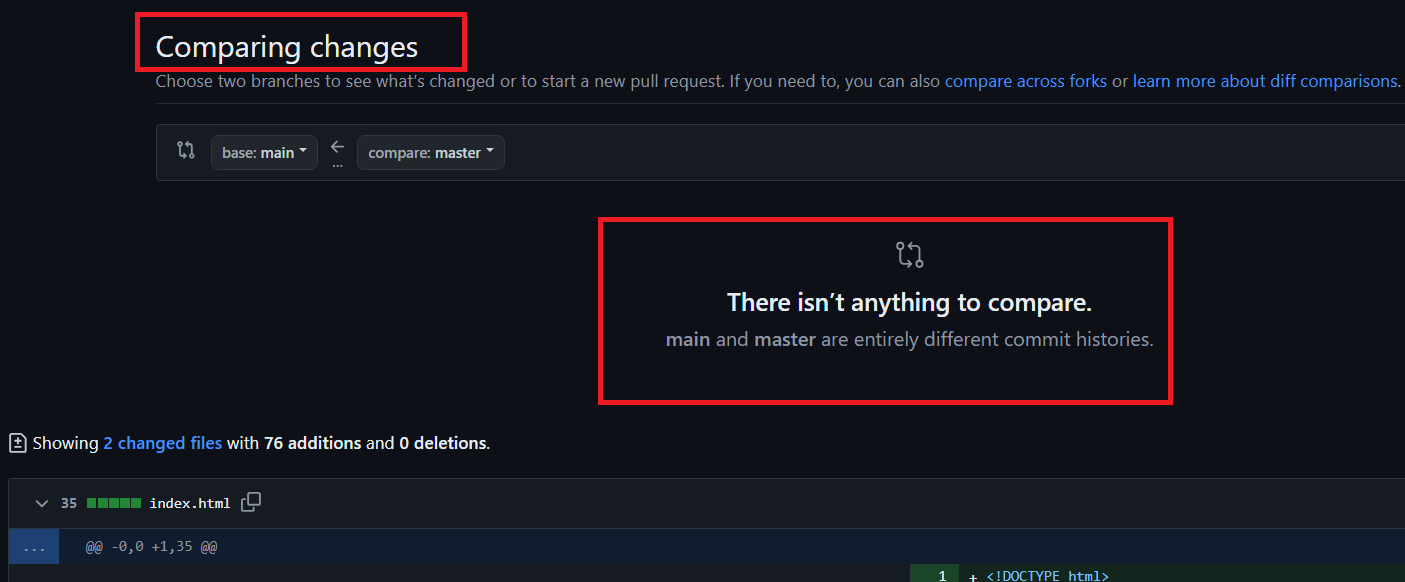
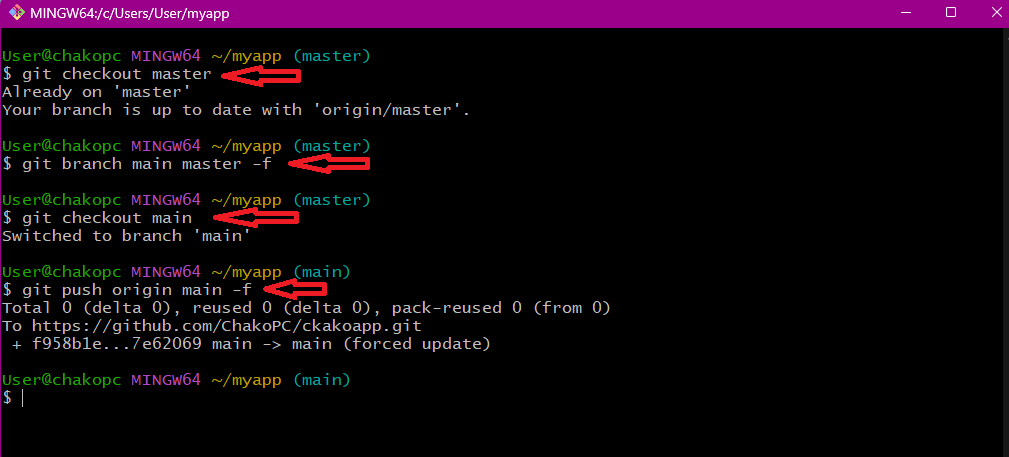
To resolve the issue of branches having entirely different commit histories, you can use the following commands:
git checkout master
git branch main master -f
git checkout main
git push origin main -f
These commands will forcefully create a new main branch from the master branch and push it to the remote repository.